QuickBooks Online (.CSV)
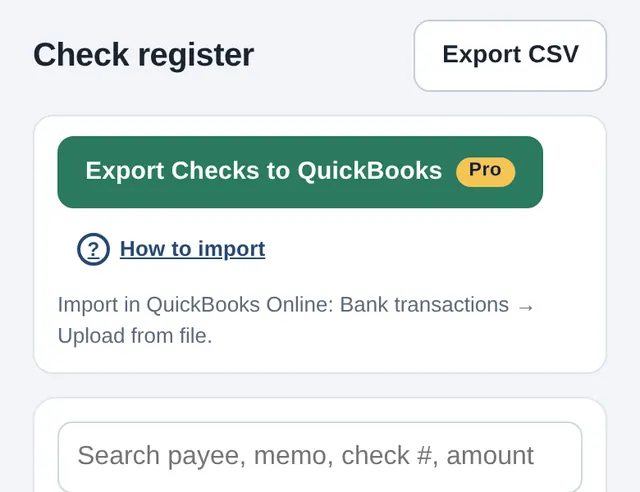
In Quick Check Writer, open Register and tap “Export Checks to QuickBooks”.
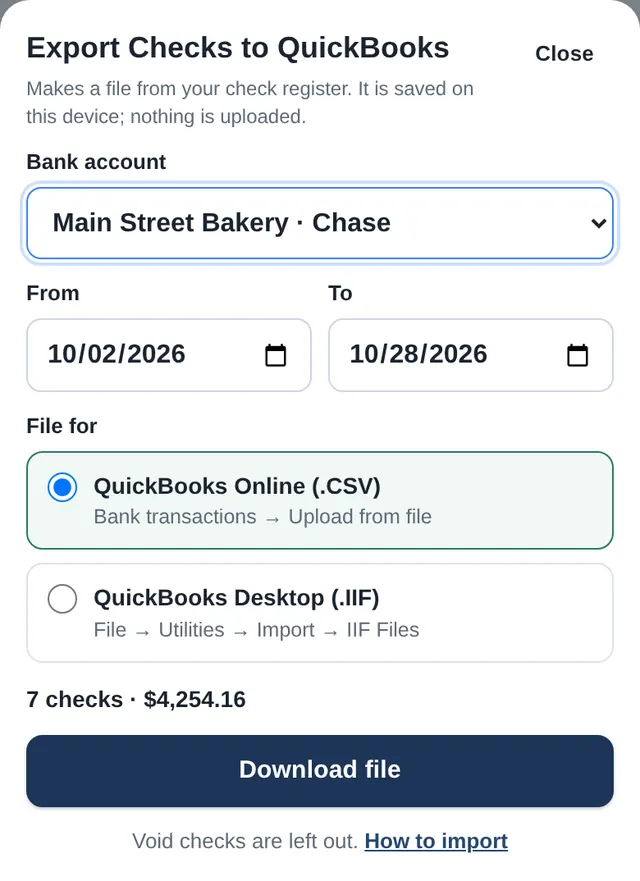
Pick the bank account and the dates, keep “QuickBooks Online (.CSV)” and tap Download. The file saves to your device.
In QuickBooks Online, go to All apps → Accounting → Bank transactions.
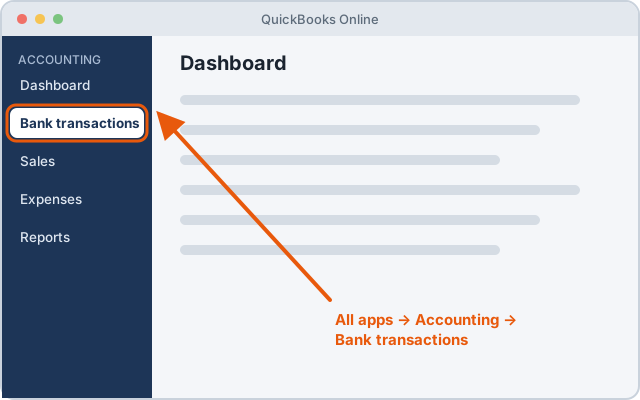
Illustration — QuickBooks screens may look slightly different. Open the Link account ▾ menu and choose Upload from file. (Older menus: Banking → Upload transactions.)
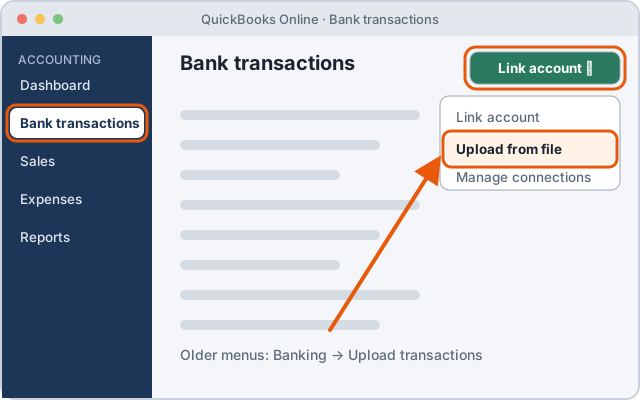
Illustration — QuickBooks screens may look slightly different. Select Drag and drop or select files, pick the QuickCheckWriter-Checks-for-QuickBooks file, then Continue.
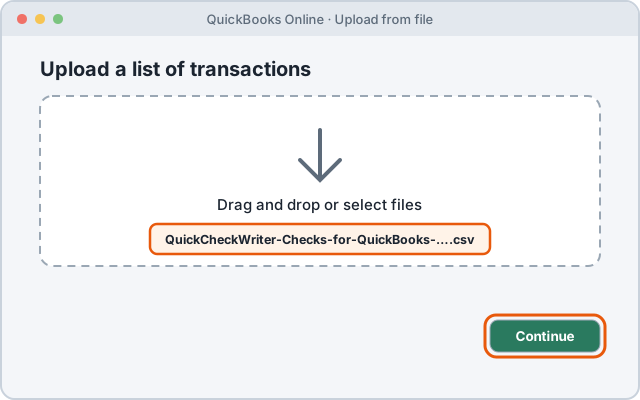
Illustration — QuickBooks screens may look slightly different. In QuickBooks account, pick the bank account the checks were written from, then Continue.
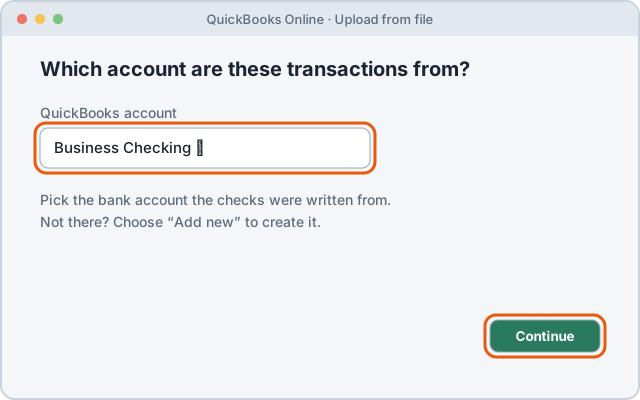
Illustration — QuickBooks screens may look slightly different. Match the columns: Date → Date (format MM/dd/yyyy), Description → Description, Amount → Amount in one column (negative = money out). Then Continue.
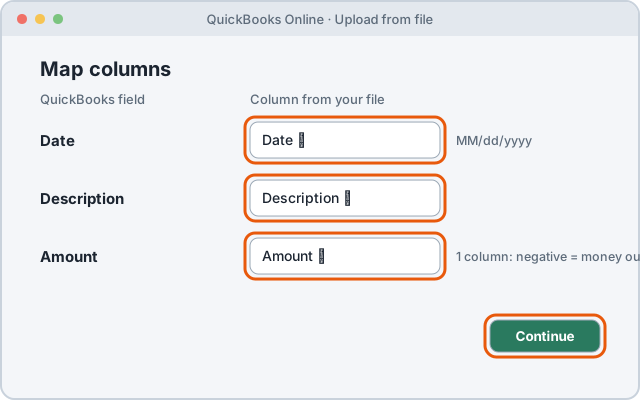
Illustration — QuickBooks screens may look slightly different. Tick the checks to import, tap Continue, then Yes and Done. Your checks wait under Bank transactions, ready to match or categorize.
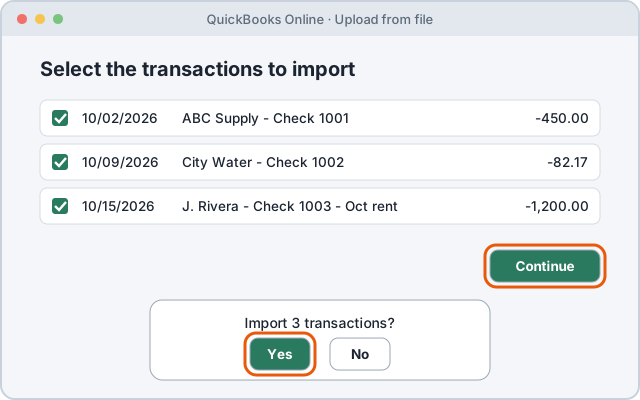
Illustration — QuickBooks screens may look slightly different.
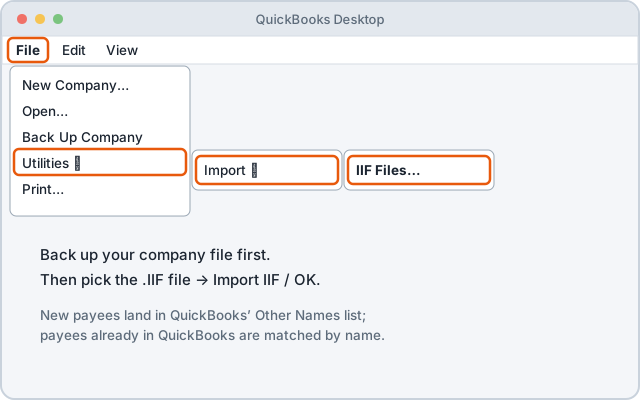
QuickBooks Desktop (.IIF): pick “QuickBooks Desktop (.IIF)” in the export window. In QuickBooks Desktop, back up your company file, then go to File → Utilities → Import → IIF Files, pick the file and choose Import IIF / OK. New payees land in the Other Names list; payees already in QuickBooks are matched by name.
What's in the file
The CSV has three columns, the format Intuit documents for bank uploads: Date (MM/DD/YYYY), Description (payee, check number and memo) and Amount (negative, because a check is money out). Void checks are left out. QuickBooks Online takes up to 1,000 lines per upload, so pick a shorter date range for more checks. The file name is QuickCheckWriter-Checks-for-QuickBooks-YYYY-MM-DD.csv.
Sources: Intuit, Format CSV files to get bank transactions into QuickBooks, Manually upload transactions into QuickBooks Online and IIF overview. QuickBooks is a trademark of Intuit Inc. Quick Check Writer is not affiliated with Intuit.
Export Checks to QuickBooks is part of Pro
Pro: up to 10 companies / bank accounts and QuickBooks export. $4.99/month, cancel anytime.
See plansStuck? Contact us and we'll reply by email.