
Key takeaways
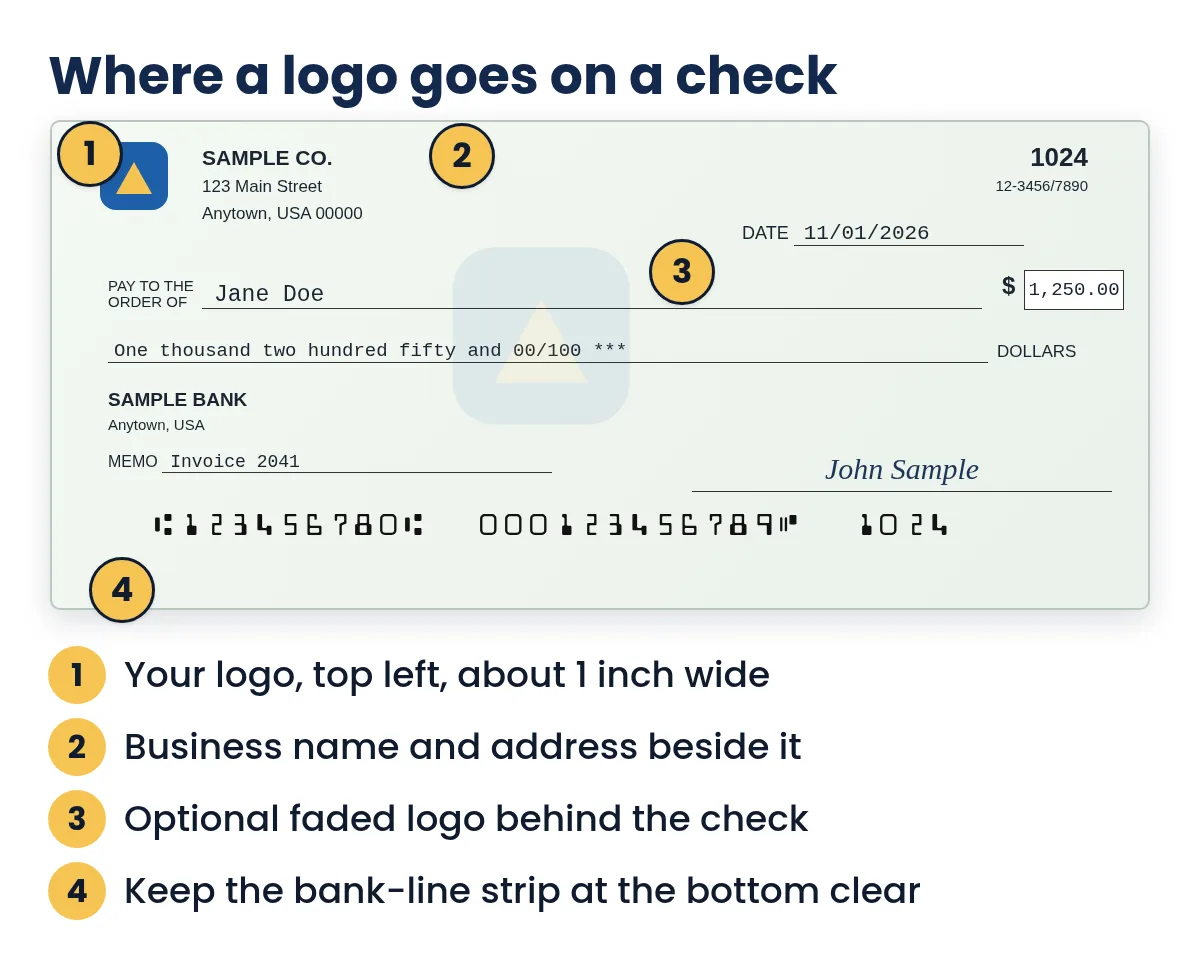
- Logo goes top left, about an inch wide.
- Use a transparent PNG, at least 300 pixels wide.
- Never put anything in the bottom MICR strip.
- Each bank account can have its own logo in Quick Check Writer.
- Use only a logo you own or are licensed to use.
On this page
- Why put a logo on your checks?
- Where the logo goes
- Preparing your logo file
- What your logo looks like after the check is deposited
- Color or black and white?
- How to add your logo in Quick Check Writer
- Worked example: two businesses, two logos
- Logo checks: print your own or order them?
- Fixing common logo printing problems
- Checklist before printing a batch of logo checks
- Ideas by type of business
- Using a logo you have the right to use
- Design tips for a professional-looking logo check
- FAQ
Why put a logo on your checks?
A check is often the only physical thing a vendor, contractor or landlord receives from your business. A logo turns it from a generic slip of paper into something that's obviously from you. In practice that helps in a few ways:
- Recognition. The payee's bookkeeper can see at a glance who the payment is from, even before reading the stub.
- Professionalism. A clean, branded check looks like it came from an established business, the same way a letterhead does.
- Consistency. Matching your invoices, envelopes and checks makes your paperwork easier to recognize, and easier to spot if something arrives that doesn't look like yours.
A logo isn't a security feature on its own; anyone can copy an image. Real protection comes from check stock security features, careful storage and watching your account. See check security features for what actually stops fraud.
Where the logo goes
Convention puts the logo at the top left of the check, next to the business name and address. That keeps it away from the fields banks and payees actually read: the payee line, the amounts, the signature and, most importantly, the MICR bank line at the bottom. In Quick Check Writer the logo prints in a box about an inch wide in the top-left corner, and your name and address move over to sit beside it.
Some businesses also like a very faint version of the logo behind the check, like a watermark. Quick Check Writer offers this as the "faded logo watermark" option on the Pro plan: your logo is printed at very low strength so the text on top stays easy to read.
Nothing decorative belongs in the strip along the bottom of the check where the MICR line prints. Bank sorting machines read that strip, and logos, backgrounds or colored ink there can cause read errors. Quick Check Writer always prints that strip white and the payee and amount in black, whatever style you choose.
Preparing your logo file
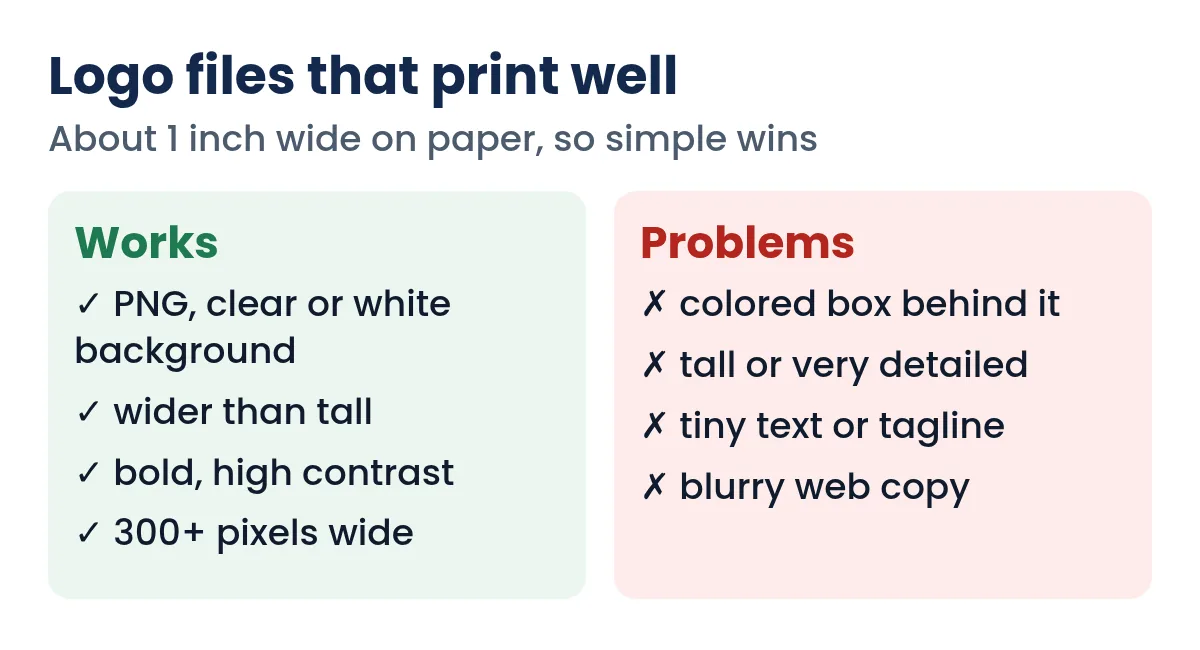
A logo on a check is small, about an inch wide, so a file that looks great on a website can look muddy on paper. Before you upload:
- Start from the original file
Ask your designer or use the source file, not a screenshot or an image saved from your website. A PNG or JPG works.
- Use a transparent or white background
A PNG with a transparent background blends into any check style. A logo sitting in a colored rectangle will print as a rectangle.
- Pick the horizontal version
The logo box is wider than it is tall. If your logo has a stacked and a horizontal version, the horizontal one usually fits better. A square icon also works.
- Keep it bold
Thin lines and small text disappear at one inch. If your logo has a tagline, use a version without it.
- Check the size
Aim for at least 300 pixels across, which gives roughly 300 dots per inch at one inch wide. Quick Check Writer resizes larger images on your device, so a bigger file is fine.
What your logo looks like after the check is deposited
Most checks never travel as paper once they reach the first bank. They're captured as images, and the images move between banks. The Federal Reserve's image cash letter specification says each check image must be black and white (not grayscale or color) with a resolution of at least 200 dpi. In other words, the version of your check that the paying bank actually sees is a two-tone picture with no colors at all.
That has practical consequences for a logo:
- Light colors can vanish. A pale yellow or light gray logo may turn completely white in a black-and-white image. That's harmless, but your branding won't survive.
- Dark blocks turn solid black. A logo inside a dark rectangle becomes a black box, and anything it touches, like your business name, can become hard to read.
- Fine detail fills in. At about 200 dots per inch, a one-inch logo is only around 200 dots wide, so thin lines and small lettering blur together.
None of this affects whether the check is paid, because the bank reads the bank line and the amount, not your logo. But it's another reason to keep the logo bold, simple and away from the check's working fields. If you want to see roughly what the bank will see, print a test check, photograph it with your phone and switch the photo to a black-and-white filter.
Color or black and white?
A color logo looks best on a color inkjet or color laser printer. If you print with a black-only laser printer (common when people use MICR toner), the logo prints in grayscale; a logo with good contrast still looks sharp, while one built from similar mid-tones can turn into a gray blob. Print a test on plain paper and look at it at arm's length before using check stock. If color matters, consider whether the extra cost of color printing is worth it for your volume; our guide on the best printer for checks covers the trade-offs.
How to add your logo in Quick Check Writer
- Open your bank account settings
Under Setup, edit the bank account you print from. Each account has its own optional logo and signature, so a person with two businesses can give each account its own logo.
- Upload the logo
Choose the image from your device. It's resized and stored in your browser on that device; it isn't uploaded to a server.
- Preview a check
The logo appears at the top left of the preview, with your name and address beside it.
- Choose a style (optional)
Pick a check style, and on Pro turn on the faded logo watermark if you want the logo behind the check too.
- Test print
Print on plain paper first and check that the logo is crisp and doesn't crowd your name.
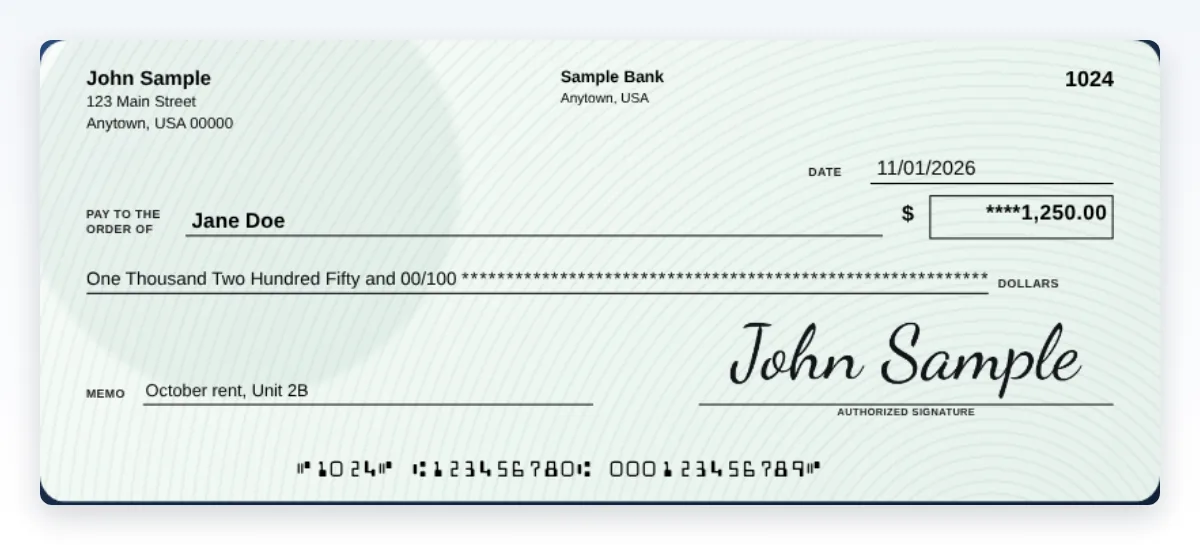
You can also show your bank's logo next to the bank name, either from the built-in library when your bank is recognized or by uploading it. That's separate from your own logo and is optional.
Need to write a check right now?
Quick Check Writer fills in the amount in words, adds the bank line and prints on blank check stock or saves a PDF. Your first check is free, with no account and no card.
Write your first check free →Worked example: two businesses, two logos
Jane Doe runs a cleaning company and also manages two rental units. She keeps the businesses separate, with a checking account at Sample Bank for each. In Quick Check Writer she adds both accounts and gives each its own logo and signature: the cleaning company's round mop icon on one, the rental business's house icon on the other.
- Choosing the account picks the logo
When Jane writes a check, she picks the account first. The check preview shows that account's logo, name, address and bank line, so she can't accidentally send a cleaning-supply payment on rental-business checks.
- One stock for both
Both businesses print on the same pack of blank check stock, because the logo, name and bank numbers all print at the same time. There's no second order of pre-printed checks to keep track of.
- One register
Every check she prints goes into the check register, with its payee, date, memo and amount, and at month-end she exports the register to CSV for her bookkeeper.
The number of accounts you can add depends on your plan; see pricing for the current limits.
Logo checks: print your own or order them?
| Print your own | Order pre-printed | |
|---|---|---|
| Logo changes | Instant: upload a new file | New order needed |
| Several businesses or accounts | One logo per account, same paper | A separate order per account |
| Setup | Minutes | Proof approval and delivery time |
| Cost of the logo | Included in the software | Often an extra charge (varies by supplier) |
| Print quality | Depends on your printer | Professional press |
If you only write a few checks a year and want a printed-press look, ordering can make sense. If you write checks regularly, manage more than one account, or update your branding, printing your own on blank stock is more flexible. Our comparison order checks or print your own? goes into the numbers, and how to print business checks covers the full setup.
Fixing common logo printing problems
| What you see | Likely cause | Fix |
|---|---|---|
| Logo prints inside a white or gray box | The file has a solid background | Use a PNG with a transparent background, or a white background on white stock |
| Logo looks blurry or jagged | Low-resolution file (often copied from a website) | Use the original file, at least 300 pixels wide |
| Logo looks tiny | Tall or square logo with lots of empty space around it | Crop the empty margin, or use the horizontal version |
| Colors look dull or muddy | Low ink, plain-paper print setting, or grayscale printing | Use a higher print quality setting, or a higher-contrast logo version |
| Logo overlaps your name | Very wide logo | Use the icon-only version so the name has room |
For alignment, faded ink and other general issues, see check printing problems and fixes.
Checklist before printing a batch of logo checks
- Preview on screen: logo crisp, not stretched, and your name still easy to read beside it.
- Plain-paper test: print one sheet at 100% scale and hold it over your check stock against a light.
- Arm's-length test: from about two feet away the logo should still be recognizable.
- Black-and-white test: photograph the test print and view it in black and white; no dark blocks or vanished text.
- Bottom strip clear: nothing printed in the bank-line strip along the bottom of the check.
- One real check first: print a single check from the stock, tear it off and inspect it before printing the rest.
Ideas by type of business
- Contractors and trades: a logo plus voucher stubs listing the job and invoice makes payments to suppliers and subcontractors easy to match.
- Landlords and property managers: a property-company logo on refund and vendor checks helps tenants and vendors recognize the payment immediately.
- Nonprofits, clubs and associations: a recognizable emblem on reimbursement checks reassures members, and a separate account per program can carry its own logo.
- Freelancers and sole proprietors: even a simple wordmark makes a personal-looking check feel like a business payment.
Using a logo you have the right to use
Only put a logo on your checks if it's your business's own logo or you're licensed to use it. Don't use another company's logo, a franchise brand you're not authorized to represent, or your bank's name in a way that makes the check look like it was issued by the bank. A check should clearly show who the account holder is; a misleading design can make payees and banks suspicious and delay your payments.
Design tips for a professional-looking logo check
- Less is more. A logo plus a clean check style looks better than a logo plus a busy background.
- Match your stationery. Use the same logo version you use on invoices and letterhead.
- Keep your name readable. The business name next to the logo should still be the clearest text in that corner.
- Leave the security features alone. On blank check stock with a printed security pattern, keep the extra background off so the stock's own features stay visible.
- Use voucher stubs for vendor payments, so the branding comes with useful detail; see check stubs and voucher checks.
Frequently asked questions
Can I put my company logo on checks?
Yes. Business checks commonly show a logo at the top left next to the business name. Keep it away from the MICR line at the bottom, and use only a logo you own or are licensed to use.
What file format is best for a check logo?
A PNG with a transparent or white background, at least 300 pixels wide. A JPG works too if the background is white.
Will a logo affect whether the bank accepts my check?
Not if it stays in the top area. Problems come from anything printed in the bottom strip where the MICR line sits, which bank machines read.
Can I use a color logo with a black-only printer?
Yes, it prints in grayscale. Logos with strong contrast look fine; logos made of similar mid-tones can look muddy, so test on plain paper first.
Can I have different logos for different bank accounts?
In Quick Check Writer each bank account has its own optional logo, so you can print checks for two businesses with different branding on the same blank stock.
Is it cheaper to print logo checks myself?
Usually, if you write checks regularly. Printing your own avoids reorder charges when your logo or account changes. Suppliers' logo fees vary, so compare for your volume.
Does a logo make my checks more secure?
Not by itself. Anyone can copy an image, so a logo doesn't stop fraud. Security comes from check stock features, storing your checks safely and reviewing your account regularly.
What size should a check logo be?
On the check it prints about one inch wide in the top-left corner. The file should be at least 300 pixels wide so it prints sharply at that size; larger files are fine.
Will my color logo show up when the check is deposited?
Usually not in color. Banks exchange checks as black-and-white images, so the paying bank sees a two-tone version. A bold, high-contrast logo stays recognizable; pale colors may disappear.
Related guides
- How to Print Business Checks
- How to add a signature to printed checks
- Check layouts: top, middle, bottom, 3 per page and wallet
- Order checks or print your own?
- Blank Check Stock: A Complete Guide
- MICR font for checks: E-13B explained
Sources
- Federal Reserve Financial Services: Image Cash Letter customer documentation (black-and-white images, 200 dpi minimum)
- PNC Bank: Magnetic ink printing specifications for checks (5/8-inch clear band)
Last updated November 1, 2026. This page is general information, not legal or financial advice. Quick Check Writer is check printing software; it is not a bank and does not move money.