
Key takeaways
- 100% scale, never "Fit to page".
- Test on plain paper first, then adjust X/Y offsets.
- Keep the MICR strip sharp and correct; compare with a bank-issued check.
- If words and numbers disagree, words prevail (UCC § 3-114).
- Never correct a check by hand; void and reprint.
On this page
- Quick diagnosis: find your problem
- The check prints in the wrong place or the wrong size
- Smudged, faded or streaky printing
- Paper jams, double feeds and curl
- Inkjet or laser: problems differ
- Nothing happens when you press Print
- Printing a check from a PDF
- Problems at the bank: why a printed check gets rejected
- "SAMPLE – NOT VALID" printed across the check
- Common mistakes checklist
- Business problems with printing checks, and how to solve them
- A five-minute setup that prevents most problems
- FAQ
Quick diagnosis: find your problem
| Symptom | Most likely cause | Jump to |
|---|---|---|
| Check is smaller than the stock, or shifted | Print scale not 100%, margins changed | Position and scale |
| Same small offset every time | Your printer's paper path | Offsets |
| Date or web address printed at the edges | Browser headers and footers on | Print dialog |
| Smudged, faded or streaky text | Ink, toner, paper side or settings | Print quality |
| Jams, double feeds, curled sheets | Paper handling | Paper feed |
| Mobile deposit or the bank rejects the check | MICR line, amounts, signature or date | At the bank |
| "SAMPLE – NOT VALID" across the check | Free check already used, no plan | Sample watermark |
The check prints in the wrong place or the wrong size
This is the most common problem by far, and it's almost always a print-dialog setting rather than the check file itself.
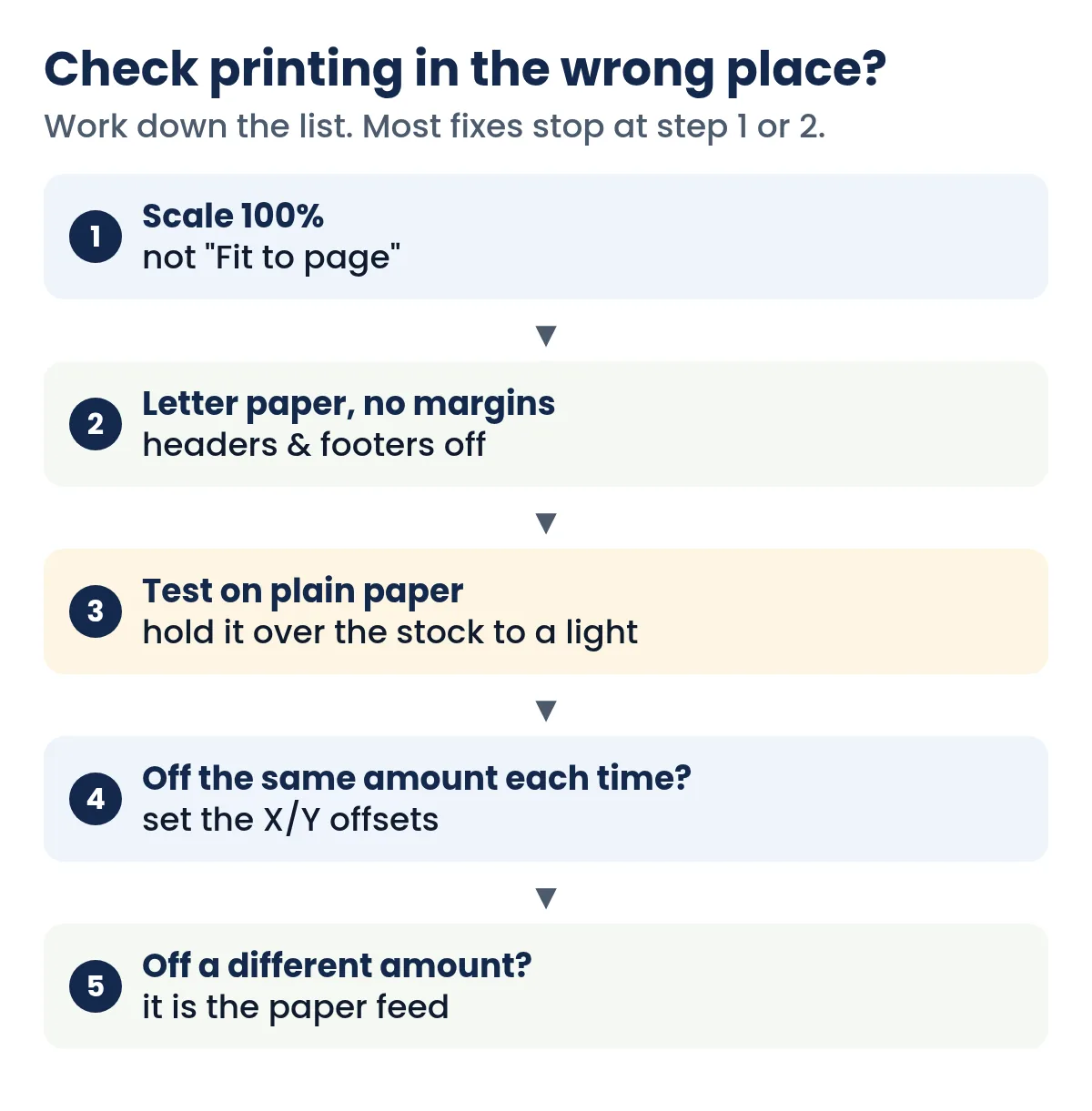
1. Set the scale to 100%
Browsers and printer drivers love to "help" by shrinking pages to fit. For a check, that's fatal: the MICR line must be printed at an exact size and distance from the check's bottom edge. In the print dialog choose Scale 100% (or Default, or Actual size), never "Fit to page" or "Shrink to fit".
Where the scale setting hides
The setting has a different name in each print dialog, which is why it's so easy to miss:
- Mac: the print dialog has a Scaling percentage. Apple's own help notes that anything below 100 shrinks the page and anything above 100 enlarges it, so it must read exactly 100%. In Preview, also turn off any "scale to fit" choice.
- Windows browsers: open More settings and set Scale to Default or 100, not "Fit to printable area".
- PDF readers: pick Actual size; the "Fit" and "Shrink oversized pages" choices both resize.
Once it's right, print a second test. If the dialog remembers your choice, you won't need to touch it again until a browser or driver update resets it.
2. Paper, margins, headers and footers
Choose Letter (8.5 x 11 inches) as the paper size. Set margins to Default or None, and turn off headers and footers so the browser doesn't stamp a date, page title or web address on your check. If your printer offers "borderless", leave it off; borderless printing slightly enlarges the page.
3. Test on plain paper
Print Quick Check Writer's alignment test page on plain paper, put it on top of a sheet of check stock, and hold both up to a window or lamp. You'll see straight away whether the boxes and the bank line fall where they should.
4. Adjust the offsets
If everything is off by the same amount every time, your printer's paper path is the cause, and offsets fix it. In print setup, enter X and Y offsets in inches: positive X moves everything right, positive Y moves it down. Change in small steps (0.02 to 0.05 inch), test again, and save.
John Sample prints a test of check 1024 to Jane Doe on plain paper and holds it over a sheet of check stock against a window. Everything is in the right place horizontally, but every line sits about 1/8 inch too low: the date is touching the line below it and the bank line is creeping toward the bottom edge. He prints a second test and it's off by the same amount, so the printer is consistent and the fix is an offset, not the paper feed. He sets the Y offset to -0.125 inch (a negative Y moves everything up), prints a third test, and it lines up. Only then does he load a real sheet of stock and print the check.
5. If it moves differently every time
Inconsistent placement means the paper isn't feeding straight. Snug the paper guides against the stack, load fewer sheets, fan the stack, or feed one sheet at a time from the manual or rear tray.
On an iPhone, use Share then Print; on Android, the menu then Share then Print. Phone printing can shift slightly compared with a computer, so run the alignment test from your phone too.
Smudged, faded or streaky printing
- Smudges on inkjet prints. Let the sheet dry a minute before handling, choose a "plain paper" or "normal" media setting rather than glossy, and make sure you're printing on the side meant for printing (blank stock usually has a front with the security pattern).
- Faded text. Replace low ink or toner, and use normal or high quality instead of draft or economy mode.
- Streaks or missing lines. Run your printer's nozzle check and head-cleaning (inkjet) or replace the drum or toner (laser).
- Toner flaking off. On a laser printer, select a heavier paper setting so the fuser bonds toner properly to thicker check stock.
- Blurry bank line. Don't print the check from a photo or a scaled PDF. Print from the app at 100% so the MICR characters stay sharp.
Choosing a printer? See the best printer for printing checks, and for whether you need special toner, do you need MICR ink?
Paper jams, double feeds and curl
Check stock is heavier than copy paper, and voucher stock has perforations that can catch. To keep it feeding:
- Store stock flat, in its package, away from humidity; curled paper jams.
- Fan the stack and load a smaller stack than usual.
- Use the rear or manual feed tray if your printer has one; its straighter path suits thick paper.
- Load the stock in the orientation your printer expects. Do a one-time test: mark the top of a plain sheet with an arrow, print, and see which way it came out. Write that on a sticky note on the printer.
Need to write a check right now?
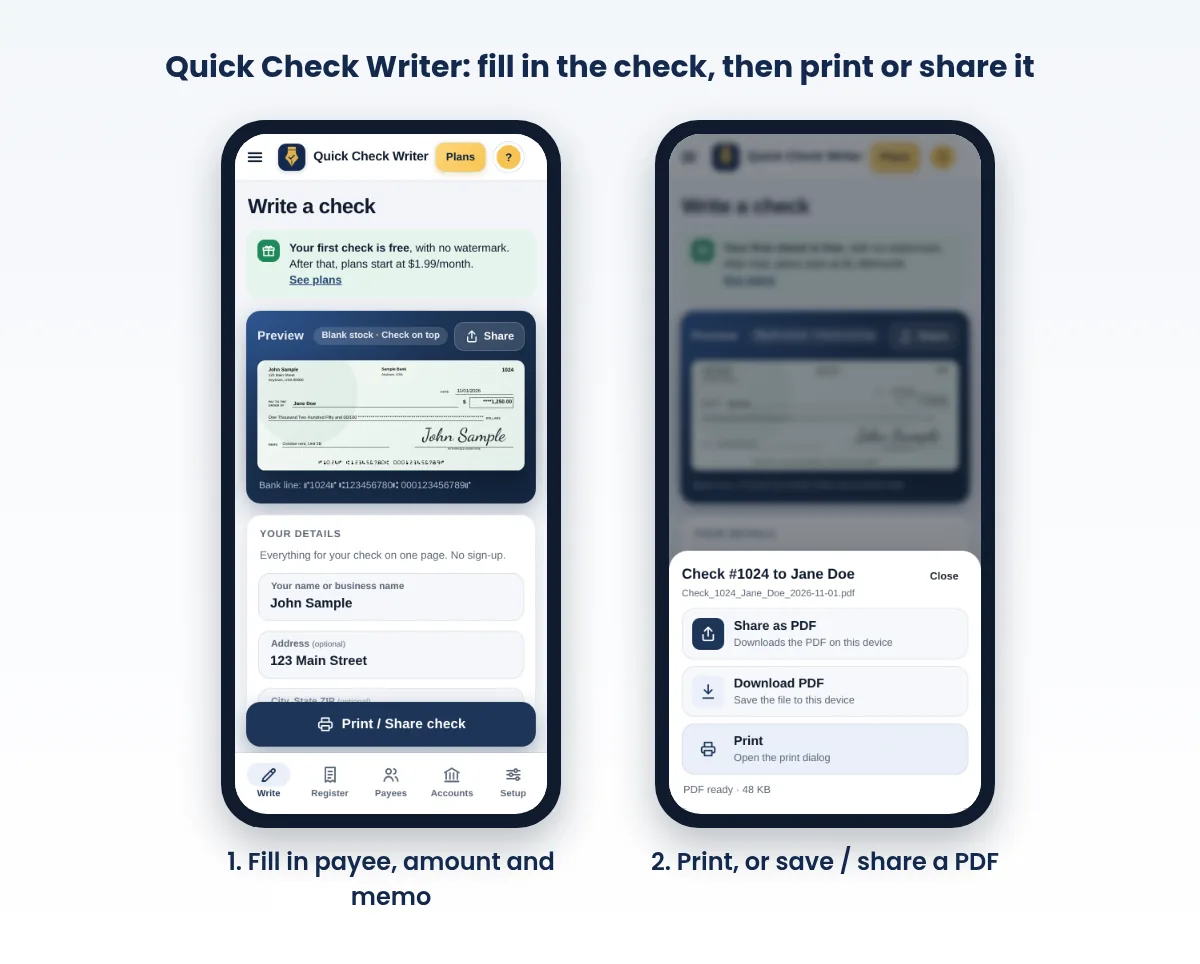
Quick Check Writer fills in the amount in words, adds the bank line and prints on blank check stock or saves a PDF. Your first check is free, with no account and no card.
Write your first check free →Inkjet or laser: problems differ
| Problem | Inkjet | Laser |
|---|---|---|
| Smearing | Common if handled before the ink dries | Rare; toner is fused by heat |
| Faded bank line | Low ink or clogged nozzles; run a cleaning cycle | Low toner; shake or replace the cartridge |
| Curled sheets | Wet, heavy ink coverage can ripple paper | Heat can curl heavier stock; let sheets cool flat |
| Best fix for shifting | Rear or manual feed, one sheet | Manual feed tray, guides snug |
Either type can print a check that a person or a mobile deposit app reads correctly. Whether you need magnetic ink depends on how your checks are processed; see do you need MICR ink and the best printers for checks.
Nothing happens when you press Print
- You're in an in-app browser. Links opened inside some messaging or social apps use a built-in browser that may not support printing. Open the page in Safari, Chrome, Edge or Firefox instead.
- The printer isn't the default. Check the destination in the print dialog; it may be set to "Save as PDF" or an old printer.
- The printer is asleep or offline. Print a plain test page from another app to confirm the printer works.
- On a phone, the printer isn't discoverable. iPhones print to AirPrint printers and Android phones use the printer's print service or plug-in; install your printer maker's app if it doesn't appear.
Printing a check from a PDF
Saving a check as a PDF and printing it later (or having the payee print it) adds one more place for scaling to go wrong. PDF viewers often default to fitting the page to the printable area, which shrinks the check slightly. In the viewer's print dialog choose "Actual size" or "100%", Letter paper, and no automatic rotation or centering. Then run the same plain-paper test against the stock. Our guide to check PDFs covers saving, sending and printing them.
Problems at the bank: why a printed check gets rejected
A check can print perfectly and still be bounced back by a mobile-deposit app or a bank. These are the usual reasons, and how to avoid each one.
1. The MICR line is wrong, smudged or misplaced
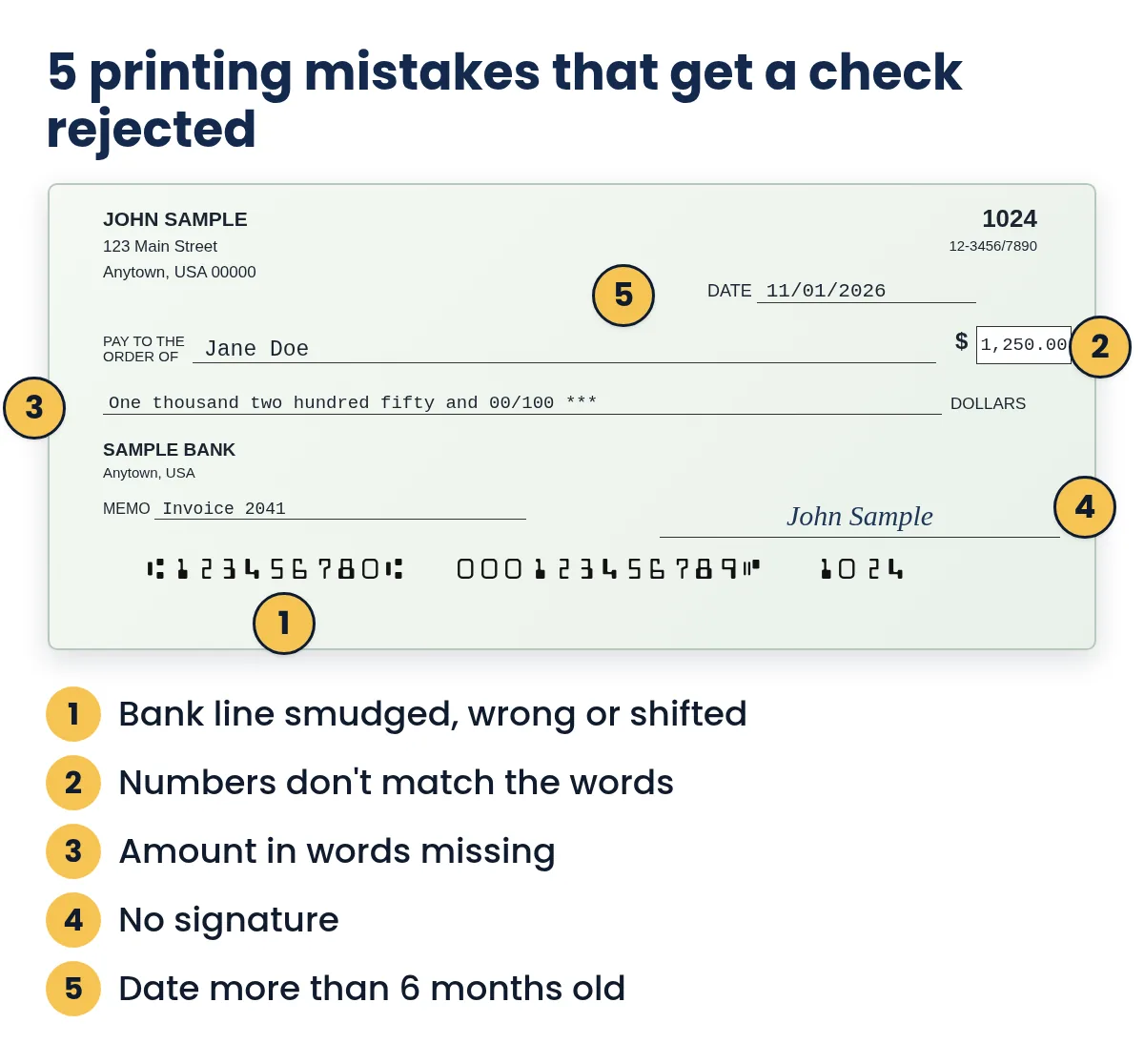
The bank line carries your routing number, account number and check number in magnetic E-13B characters. If a digit is wrong, the check goes to the wrong bank or account, or gets rejected. If the line is printed at the wrong size or position, sorting machines may not read it and the check is handled manually or returned. Fixes: copy your routing and account numbers from online banking or a statement (see where to find them), print at 100% scale, keep that strip clean, and compare a test print with a check your bank issued. Our guide on the MICR font explains the line in detail.
2. The amount in numbers and in words don't match
Under UCC § 3-114, when terms on an instrument contradict each other, words prevail over numbers. So a check that says $1,250.00 in the box but "One thousand two hundred five" in words may be paid at the words amount, or the bank or mobile-deposit app may simply refuse it. Software that fills in the words from the number removes this risk; if you edit either by hand, re-read both.
3. The amount in words is missing
Some people fill in the box and forget the line. Payees and banks expect both. See how to write an amount in words.
4. No signature
An unsigned check isn't a completed order to pay. If you don't print a signature, sign every check before it leaves your desk. Options for printed signatures are in how to add a signature to printed checks.
5. The date
Under UCC § 4-404 a bank doesn't have to pay an ordinary check presented more than six months after its date, so an old date can get a check refused. A future date isn't reliable either: a bank may pay a post-dated check early unless you've given it notice. Use the date you actually issue the check. See how long a check is good for.
Other causes worth checking
- Duplicate check numbers. Keep printed checks in their own number range so a number never repeats.
- Payee name doesn't match the depositor. Use the payee's full legal or business name.
- Mobile deposit image problems. Busy backgrounds behind the check or glare on glossy paper make apps reject the photo; see mobile deposit tips.
- Your bank's own rules. Banks can set their own policies on accepting items; if a home-printed check is questioned, ask the bank exactly what it needs.
Don't correct a wrong amount, date or payee with a pen or correction fluid. Changes invite rejection and look like alteration. Void the check, record it as void, and print a new one. See how to void a check.
"SAMPLE – NOT VALID" printed across the check
Quick Check Writer's first check prints free with no watermark. After that, printed and shared checks carry a large "SAMPLE – NOT VALID" mark until you choose a plan, so the payee can't deposit them. If you see the mark on a check you meant to use, check that you're signed in to the account that has your plan, then print again. Plan details are on the pricing page.
Common mistakes checklist
- Printing on real stock before a plain-paper test.
- Loading the stock upside down, or with the check on the wrong end for the layout you picked.
- Letting the browser add its own header and footer (date and web address) to the page.
- Changing printers, drivers or paper trays without re-running the alignment test.
- Typing an account number from memory instead of copying it from online banking.
- Correcting a printed check with a pen instead of voiding and reprinting it.
- Throwing a misprint away with your account number readable. Mark it VOID and shred it.
Business problems with printing checks, and how to solve them
Beyond printer settings, businesses run into the same handful of process problems when checks are part of how they pay people.
Pre-printed checks are expensive and inflexible
Every new bank account, address or logo means a new order, and leftover checks become waste. Printing on blank stock lets one pack of paper serve every account. See order checks or print your own?
Handwritten checks lead to errors
Illegible payees, mismatched amounts and missing dates cause rejected checks and phone calls. Typed checks with the amount in words generated for you eliminate most of these.
Checks take too long
Saved payees, batch printing several saved checks at once, and voucher stubs with the invoice details cut the time per payment. A register that fills itself in removes the separate bookkeeping step.
Security worries
Blank stock and pre-printed checks both need locking up. Use stock with security features, keep the software and device protected, shred misprints, and reconcile your account regularly. Our guides on printing checks safely at home and check fraud prevention cover this in depth.
Records are scattered
If check details live in a paper checkbook, an email and a spreadsheet, month-end is painful. Keep one register for every check, with reprint and void history, and export it when you reconcile. See check register app.
A five-minute setup that prevents most problems
- Enter your bank details once, carefully
Copy the routing and account numbers from online banking and confirm the account number twice.
- Pick the layout that matches your stock
Top, middle, bottom or 3 per page; see check layouts.
- Set the print dialog once
Letter, 100% scale, default margins, headers and footers off.
- Run the alignment test and save offsets
Plain paper first, then one real sheet.
- Compare with a bank-issued check
Your test check's bank line should match the format of a check from your bank.
Frequently asked questions
Why is my check printing too small?
The print dialog is scaling the page. Set the scale to 100% (or Actual size/Default) and turn off "Fit to page" or "Shrink to fit".
How do I line up a check with my check stock?
Print an alignment test page on plain paper, hold it over the stock against a light, then adjust the X and Y offsets in small steps until everything lines up.
Why did mobile deposit reject my printed check?
Common causes are a wrong or smudged MICR line, amounts in numbers and words that don't match, a missing signature, an old date, or a poor photo with glare or a busy background.
Do I need MICR toner for checks to clear?
Not always. Many people print checks with regular inkjet or laser printers, but high-volume printing or a bank's requirements may call for MICR toner. See our guide on whether you need MICR ink.
What happens if the written amount and number amount don't match?
Under UCC § 3-114, words prevail over numbers. The bank may pay the amount in words, or refuse the check, so void it and print a new one.
Why is there a date and web address at the top of my printed check?
Your browser's headers and footers are on. Turn them off in the print dialog's more settings.
Can I fix a mistake on a printed check with a pen?
It's better not to. Corrections can get a check rejected or look like alteration. Void it, record it as void, and print a new check.
How do I void a misprinted check?
Write VOID across the front in large letters, record it as void in your check register so the number is accounted for, and shred it. In Quick Check Writer you can mark the check as void in the register and print a new one.
Why is the bottom of my check cut off?
Most printers cannot print right to the edge of the paper. If the bank line at the bottom is clipped, check that scale is 100% and margins are at the default, then try a layout with the check at the top of the sheet or adjust the vertical offset.
Can I print checks on an inkjet printer?
Yes, an inkjet can print a readable check on blank check stock. Let the ink dry before handling and keep the nozzles clean so the bank line is crisp. If your bank requires magnetic ink, read our MICR ink guide before buying supplies.
Related guides
- Check layouts: top, middle, bottom, 3 per page and wallet
- Do You Need MICR Ink to Print Checks?
- The best printer for printing checks
- MICR font for checks: E-13B explained
- How to print checks at home
- How to Void a Check
Sources
- UCC § 3-114 Contradictory terms, Cornell LII
- UCC § 4-404 Checks over six months old, Cornell LII
- UCC § 4-401 (post-dated checks), Cornell LII
- Apple Support: Print settings on Mac (Scaling)
Last updated November 1, 2026. This page is general information, not legal or financial advice. Quick Check Writer is check printing software; it is not a bank and does not move money.