
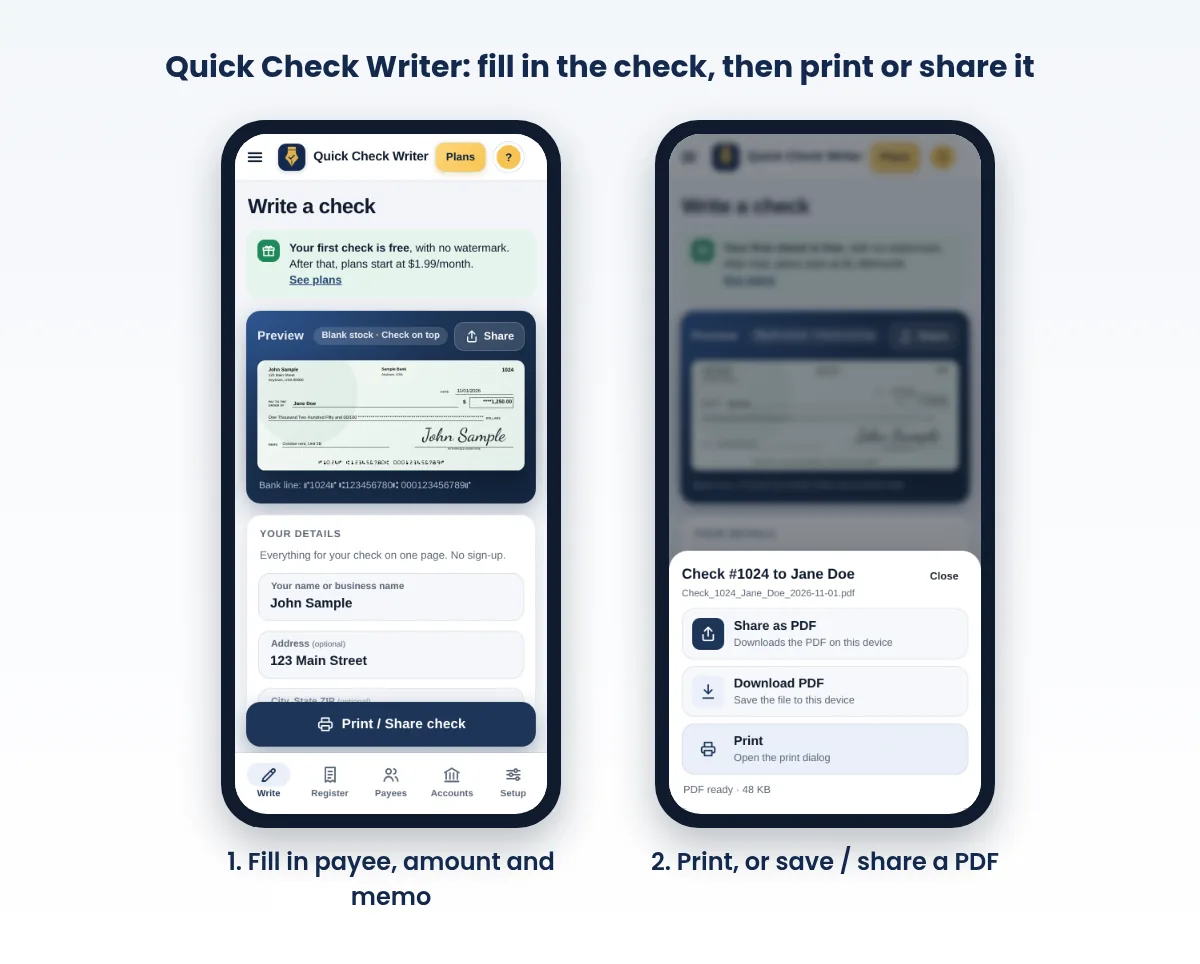
Key takeaways
- A check PDF is a print-ready check, not an electronic payment.
- Always print at 100% / Actual size on Letter paper.
- Make sure the PDF layout matches the check stock it's printed on.
- Treat the file like a paper check: send it only to the right person.
- Quick Check Writer builds the PDF on your device and logs it in your register.
On this page
- What a check PDF is (and what it isn't)
- How to save a check as a PDF in Quick Check Writer
- Saving any check as a PDF from your device's print menu
- How to print a check from a PDF
- Fixing common check PDF problems
- Sending a check PDF safely
- If you received a check as a PDF
- Three ways people use check PDFs
- Before you send a check PDF: a checklist
- Changing a check after the PDF is sent
- Making checks from invoices without retyping
- Keeping check PDFs as records
- FAQ
What a check PDF is (and what it isn't)
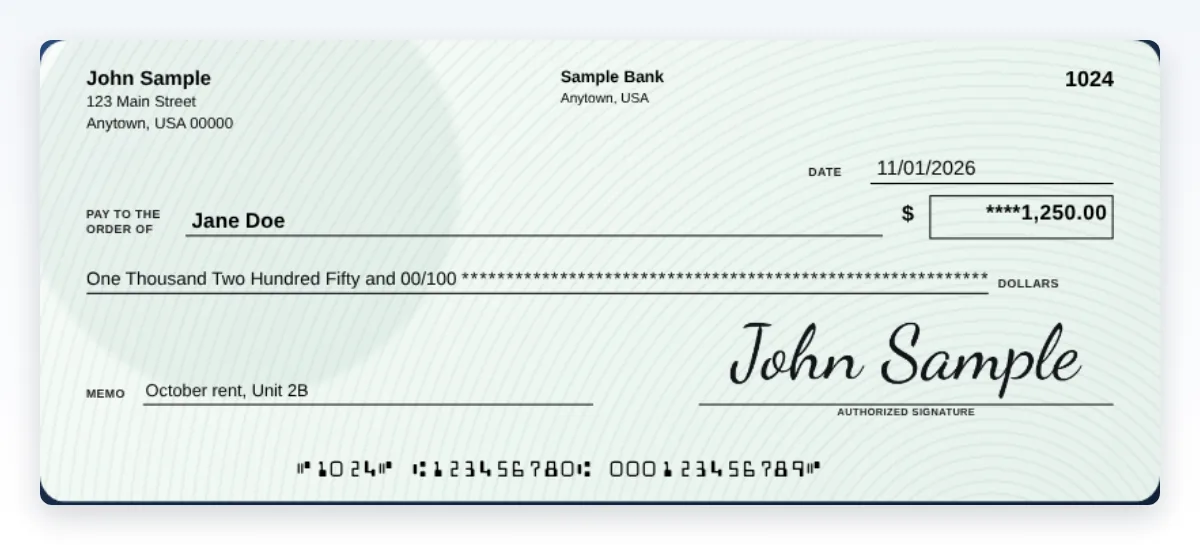
A check PDF is a print-ready page with a complete check on it: your name and address, the payee, the amount in numbers and words, the date, the memo, the signature if you add one, and the bank line in the E-13B font. Because a PDF stores exact page dimensions, the check comes out at its true size when it's printed at 100%.
It is not an electronic payment. No money moves when you create or send the file. The payment happens when someone prints the check and deposits it, and the bank collects it from your account like any paper check. If you need money to move electronically, that's a different tool, like a bank transfer. See eCheck vs paper check and ACH vs check.
How to save a check as a PDF in Quick Check Writer
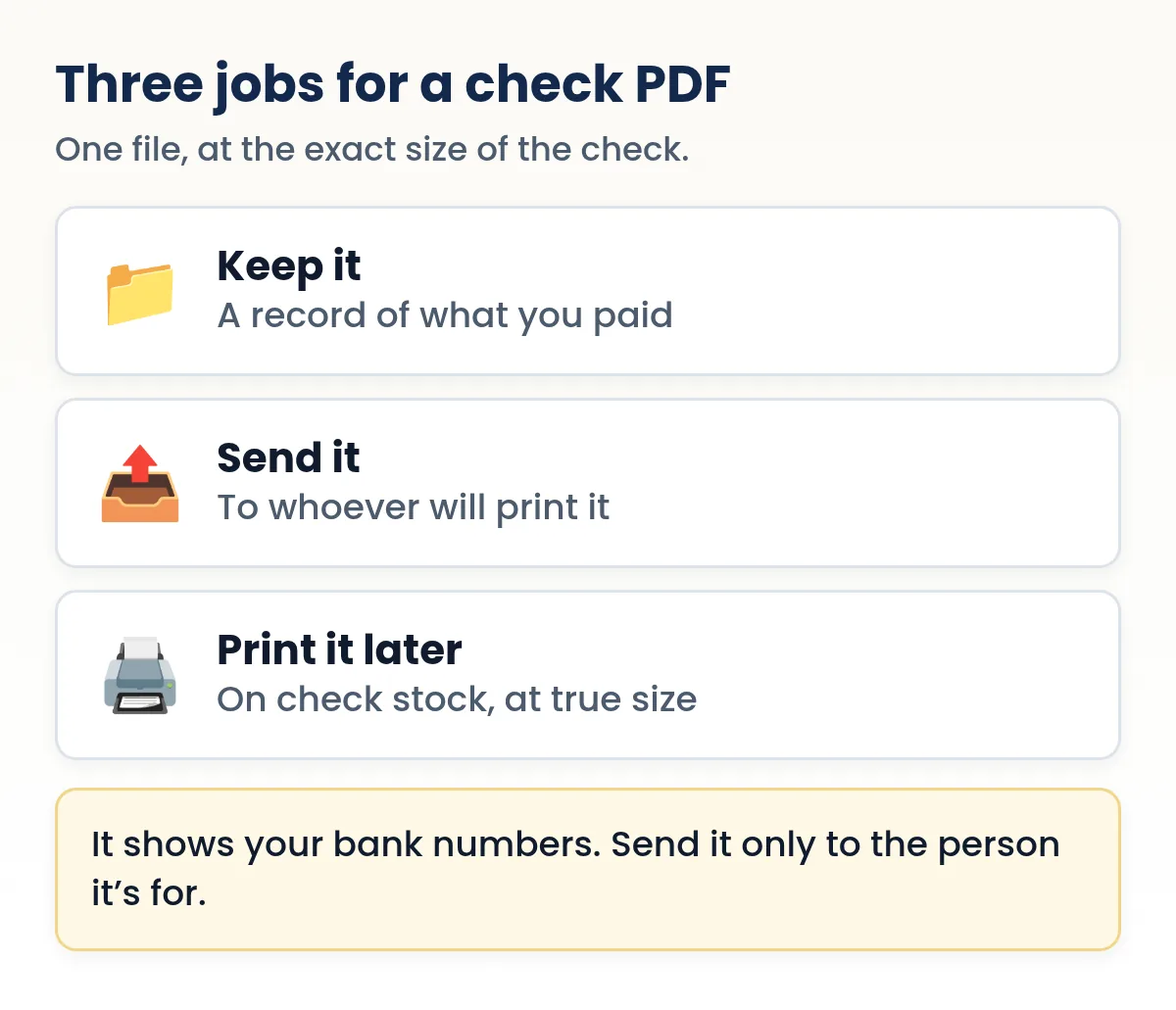
- Fill in the check
Choose the payee (or pick one from your saved payees), enter the amount and date, and add a memo such as an invoice number. The amount in words fills itself in.
- Choose the layout
Pick the layout that matches the paper it will be printed on: check on top, middle or bottom of a letter sheet with stubs, or three per page. If you don't know what paper the recipient has, the top layout is a safe default and prints fine on plain paper too.
- Sign it, or leave it blank
Add a drawn, uploaded or typed signature, or leave the line blank so the check is signed by hand after printing.
- Tap Share or Download PDF
On a phone, Share as PDF opens your share menu (email, messaging apps, cloud drives). On a computer, Download PDF saves the file. The file name includes the check number, payee and date, so it's easy to find later.
- Done: it's in your register
Every check you print or share is logged in your check register with its number, payee and amount, so you can reprint or void it later.
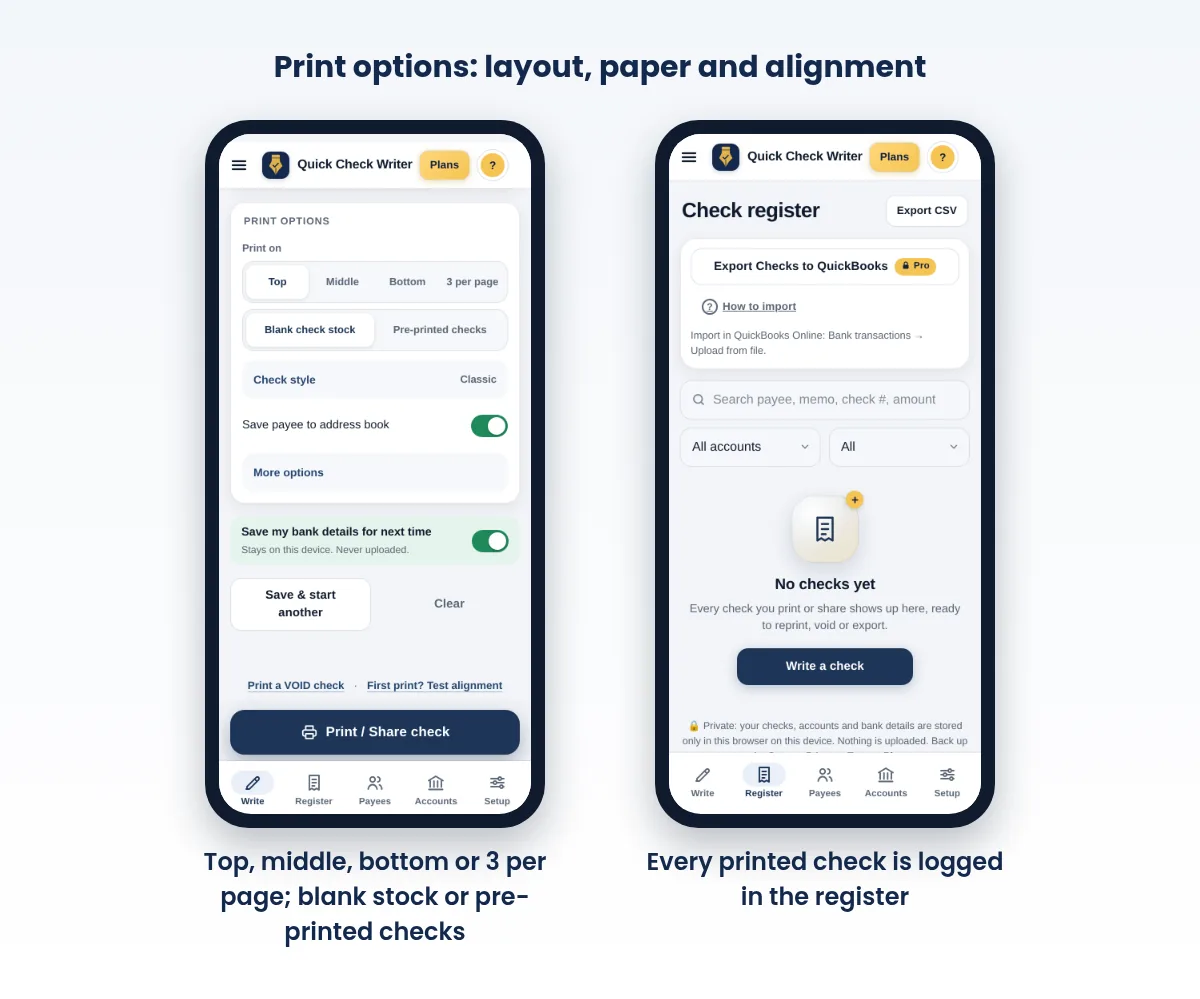
The PDF is built in your browser, on your device. Your bank details aren't uploaded to make it. It uses the same layout as printing, including vector text, so it stays sharp at any zoom.
Saving any check as a PDF from your device's print menu
Most devices can also "print" to a PDF file instead of paper. This works for any check software that prints, though a native PDF export (like the one above) is usually cleaner.
- Windows
- In the print dialog, choose Microsoft Print to PDF as the printer, then pick where to save the file.
- Mac
- In the print dialog, click the PDF button at the bottom and choose Save as PDF.
- Android (Chrome)
- Tap More, then Share, then Print. At the top, choose Save as PDF as the printer.
Whichever way you make it, open the PDF once and check that the page is letter size and nothing is cut off.
Need to write a check right now?
Quick Check Writer fills in the amount in words, adds the bank line and prints on blank check stock or saves a PDF. Your first check is free, with no account and no card.
Write your first check free →How to print a check from a PDF
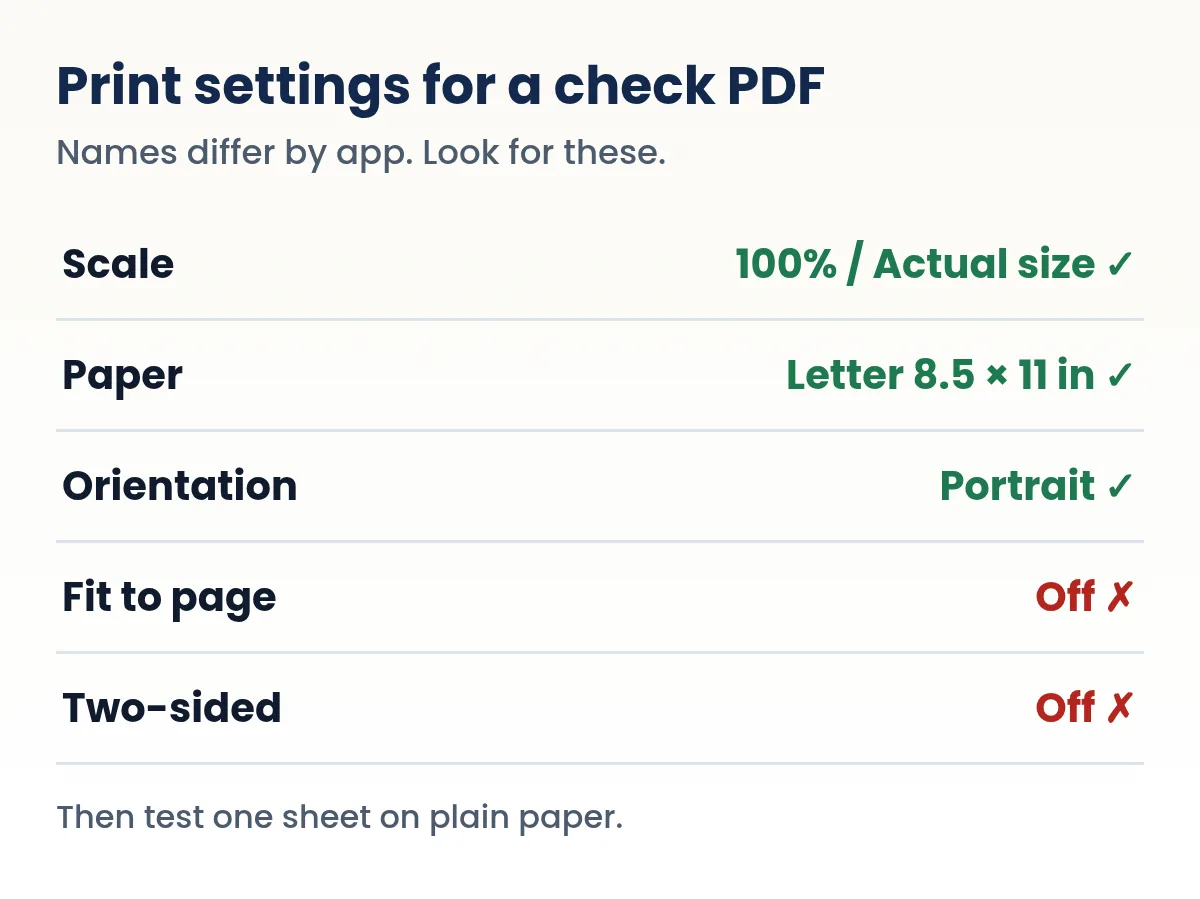
Most problems with printed check PDFs come from one setting: scaling. Viewers and print dialogs often shrink a page to "fit" the printable area, which moves the bank line a few millimeters. Turn that off.
- Open the PDF in a full viewer
Use your computer's PDF viewer or browser rather than a quick-look preview inside an email app, so you get the full print settings.
- Set scale to 100% (Actual size)
Turn off "Fit to page," "Shrink oversized pages" or anything similar.
- Choose Letter paper
8.5 × 11 inches, portrait. If the printer defaults to A4 (common outside the US), change it.
- Test on plain paper
Hold the test print over a sheet of check stock against a light. The check area of the PDF should line up with the check on the stock, and the bank line should sit in the bottom 5/8 inch of the check.
- Print on check stock
Load one sheet the right way up and print. Check the bank line is crisp and black before printing more.
A PDF made with the check at the top of the page must be printed on stock with the check at the top. If the recipient has different stock, ask the sender for a PDF in the matching layout, or print on plain paper if their bank accepts it.
Printers that put the image a little off-center can't be fixed from inside a PDF. If you print your own checks regularly, use the app's print offsets instead, which adjust the layout before it's printed. Our printer guide and check printing problems page cover alignment in detail.
Fixing common check PDF problems
| Problem | Likely cause | Fix |
|---|---|---|
| Check prints slightly small, bank line too high | Fit-to-page scaling | Print at 100% / Actual size |
| Bank line cut off at the bottom of the sheet | Bottom layout and a printer that can't print that close to the edge | Use top or middle layout stock, or check the printer's margin settings |
| Letters like "A" and "C" instead of bank symbols | The MICR font wasn't embedded in the PDF | Recreate the PDF with software that embeds the E-13B font |
| Fuzzy or jagged text | The "PDF" is really a photo or screenshot | Use a true PDF export; vector text stays sharp |
| Check lands on a stub instead of the check | PDF layout doesn't match the stock | Ask for, or make, the matching layout |
| Page prints on A4 and shifts | Printer default paper size | Select Letter (8.5 × 11 in) |
Quick Check Writer's PDFs embed the E-13B font and use vector text, so the first and fourth problems don't come up with them. Scaling and layout are still up to whoever prints the file.
Sending a check PDF safely
A check PDF carries the same details as a paper check: your name, routing number and account number. Anyone who has ever received a paper check from you has seen them. Still, a file is easy to forward, so treat it carefully:
- Confirm the address. Send it only to someone you know, using contact details you already had. Be wary of a "new" email address for a vendor, a common way payments get redirected.
- Use a memo. An invoice or reference number ties the check to what it pays for.
- Don't post it. Never upload a check PDF to a public place or a shared folder others can browse.
- Consider leaving it unsigned for larger amounts, and hand over or mail the signed original instead.
- Password-protect it if you like. Your PDF app can add a password before you send it (on a Mac, Preview can do this when you export). Share the password separately, by phone or text.
- Watch your account. Turn on your bank's alerts so you see each check as it clears.
More on sending: how to email a check and how to send a check by WhatsApp or text.
If you received a check as a PDF
To the payee, a check PDF is a check they print. Print it at 100% scale, ideally on blank check stock, sign the back as usual, and deposit it at a branch, an ATM or with mobile deposit if your bank accepts printed checks. Policies vary by bank, so if it's your first time, ask your bank or deposit it with a teller. Our guide to ways to deposit a check covers each option.
Never accept a check PDF from a stranger who asks you to send part of the money back. That pattern is a classic fake-check scam, whatever format the check arrives in. See how to verify a check.
Three ways people use check PDFs
The owner writes, the office prints
John Sample approves bills from his phone in the evening. He writes each check in the app, leaves the signature line blank, and shares the PDFs to his office manager. In the morning she prints them at 100% on check stock, John signs them by hand, and they go out. The PDF is the hand-off; the signature still happens on paper, in person.
Paying someone who is far away
Jane Doe owes a contractor in another state who has a printer and blank stock. Rather than mail a check and wait, she sends a PDF by email to the address the contractor gave her when the job started, then calls to confirm it arrived. The contractor prints it, endorses it and deposits it. Before trying this, the payee should confirm with their own bank that it accepts checks printed this way.
No printer today
A check is due but the printer is out of toner. Save the PDF now and print it when you're back at a working printer. Avoid public printers in libraries or copy shops for this: the file shows your routing and account numbers, and a shared machine may keep a copy in its queue.
Before you send a check PDF: a checklist
- Payee name spelled exactly as they use it at their bank.
- Amount in numbers and words match; the date is right.
- Memo carries an invoice or reference number.
- Layout matches the paper the recipient will print on.
- Recipient's address confirmed through a channel you already trusted.
- Signature added, or left blank on purpose with the original to follow.
- The check is in your register, so you'll recognize it when it clears.
Changing a check after the PDF is sent
Don't edit a check PDF in a PDF editor. A check that has been altered after it was issued is a red flag to banks and payees, and your register would no longer match what's out there. If the amount or payee was wrong, void the check in your register, tell the payee not to use the first file, and issue a new check with a new number. If the first file may already have been printed and deposited, call your bank about a stop payment.
Making checks from invoices without retyping
A common wish is to turn a PDF invoice straight into a check. Quick Check Writer doesn't read invoice PDFs, but it removes most of the retyping in other ways:
- Saved payees. Each payee's name and address is stored once and picked from a list.
- Amount in words fills itself in from the number.
- Stub notes and a stub photo. On voucher layouts, type the invoice details on the stub, or add a photo of the invoice to the stub, so the paperwork travels with the check.
- Batch printing. Save several checks and print them together.
Check numbers advance automatically, and everything lands in your register for month-end. See check stubs and voucher checks.
Keeping check PDFs as records
Many people keep a PDF of every check they write, even when they print and hand over the paper. It's a clean copy of exactly what you issued. Name files consistently (Quick Check Writer's file names already include the check number, payee and date), keep them in one folder, and back that folder up. Pair them with your register and your bank statement, and month-end reconciliation is quick.
Frequently asked questions
How do I print a check from a PDF?
Open the PDF in a full viewer, choose Letter paper, set the scale to 100% or Actual size, test once on plain paper against your check stock, then print on check stock.
Why does my check PDF print too small?
The print dialog is shrinking it to fit. Turn off Fit to page or Shrink oversized pages and print at 100%.
Can I save a check as a PDF?
Yes. In Quick Check Writer, fill in the check and choose Share as PDF or Download PDF. You can also print to PDF from Windows, Mac or Chrome on Android.
Is it safe to email a check PDF?
It's about as safe as handing over a paper check, provided you send it to the right person. Confirm the address, use a memo, and consider a password or leaving large checks unsigned.
Can the payee deposit a check PDF?
They print it and deposit the printed check. Acceptance of printed checks varies by bank, so a first-time payee may want to ask their bank or use a teller.
Does a check PDF move money?
No. It's a file. Money moves only when the printed check is deposited and your bank pays it.
Can I turn an invoice PDF into a check automatically?
Quick Check Writer doesn't read invoice PDFs, but saved payees, automatic amount in words, stub notes and a stub photo of the invoice cut down most of the typing.
Can I print a check PDF on regular paper?
It prints, but whether a bank accepts it is the bank's call. Check stock adds security features and the expected feel. If you only have plain paper, ask your bank first. See our guide on printing checks on regular paper.
Can I edit a check PDF?
You shouldn't. An altered check invites rejection and leaves your records out of step. Void the check in your register and issue a new one with the right details.
How do I print a check PDF from my phone?
Open the PDF, tap Share, then Print. On an iPhone choose an AirPrint printer; on Android choose a printer set up on the phone. Set the scale to 100% if the option appears.
Related guides
- How to email a check
- How to Send a Check by WhatsApp or Text
- The best printer for printing checks
- Check size and dimensions
- Check printing problems and fixes
- Check stubs and voucher checks
Sources
- Google Chrome Help: Print from Chrome on Android (Save as PDF)
- Apple Support: Save a document as a PDF on Mac
- Apple Support: Password-protect a PDF in Preview on Mac
- Microsoft Q&A: Microsoft Print to PDF printer in Windows
- ASC X9 TR 100-2013 glossary (MICR clear band 0.625 in)
- Apple Support: Use AirPrint to print from your iPhone or iPad
Last updated November 1, 2026. This page is general information, not legal or financial advice. Quick Check Writer is check printing software; it is not a bank and does not move money.